Beginner Guide to Modern Technology: Essential Insights for New Users

Modern technology can seem overwhelming, but understanding its basics is essential in today’s world. It shapes how we communicate, work, and live every day. A beginner’s guide breaks down complex ideas into simple, clear steps to help you navigate technology confidently.

From smartphones to cloud computing, technology is everywhere and constantly evolving. Learning key concepts helps you make better decisions about which tools to use and how to protect your information in a digital environment. This guide offers straightforward explanations without technical jargon.

Whether you want to improve your digital skills or simply understand what’s behind the devices you use, this guide will provide practical knowledge. It focuses on what matters most to beginners looking to become comfortable with modern technology.

What Is Modern Technology?

Modern technology involves tools and systems designed to improve efficiency, communication, and daily life. It includes devices that integrate advanced computing, connectivity, and automation.

Defining Modern Technology

Modern technology refers to innovations developed mainly since the late 20th century that rely on digital computing, the internet, and miniaturisation. It covers consumer electronics like smartphones, wearable devices, and smart home systems.

This technology enables faster data processing, real-time communication, and access to vast information. It often includes software and hardware working together for tasks such as automation, data analysis, and entertainment.

Key Features of Modern Devices

Modern devices share several important features:

  • Connectivity: Use of Wi-Fi, Bluetooth, or cellular networks for constant communication.
  • Portability: Lightweight and compact designs for ease of transport.
  • User Interface: Touchscreens and voice recognition for intuitive operation.
  • Integration: Ability to connect with other devices and cloud services.
  • Energy Efficiency: Components designed to maximise battery life and reduce power consumption.

These characteristics allow users to interact with technology seamlessly and access information from anywhere.

How Technology Has Evolved

Technology has shifted from mechanical and analogue systems to digital and automated solutions. Early computing devices were bulky and limited, while modern devices are compact and powerful.

The rise of the internet and wireless communication transformed how people interact and share data. Advances in microprocessors, sensors, and AI continue to drive rapid development of smarter, more responsive tools.

Essential Devices for Beginners

Selecting the right technology starts with understanding the basic tools that enable connectivity, productivity, and convenience. These devices vary in form and function but share a key role in everyday digital life.

Smartphones and Tablets

Smartphones combine communication, internet access, and apps into a handheld device. For beginners, devices with user-friendly interfaces like iPhones or mid-range Android phones are ideal. Features to prioritise include battery life, camera quality, and screen size.

Tablets offer larger screens for browsing, reading, and media consumption. They are less portable than smartphones but better suited for tasks such as drawing and note-taking. Devices like the iPad or Samsung Galaxy Tab serve well for those focused on a balance between portability and functionality.

Both device types rely on app stores to download software. Understanding permissions and basic security settings is essential to keep personal data safe.

Laptops and Desktop Computers

Laptops provide portability for work, study, and entertainment. Key features to consider include processor speed, RAM (minimum 8GB recommended), and storage type—SSD offers faster access than traditional hard drives. Brands like Dell, HP, and Apple cater to a wide range of needs and budgets.

Desktop computers, while stationary, generally have superior performance and easier upgrade options. They are suitable for tasks that demand higher computing power, such as video editing or gaming. Beginners might prefer pre-built models to avoid the complexity of assembling parts.

Choosing the right operating system—Windows, macOS, or Linux—depends on user preference and software compatibility.

Wearables and Smart Home Devices

Wearables such as smartwatches and fitness trackers monitor health metrics and simplify notifications. Devices like the Apple Watch or Fitbit provide intuitive apps and reliable syncing with smartphones.

Smart home devices include smart speakers, thermostats, and security cameras. They enhance convenience by automating daily functions through voice commands or scheduled routines. Examples include Amazon Echo and Google Nest products.

Security settings should be configured carefully to prevent unauthorised access. Beginners should also consider compatibility with existing devices and ease of setup.

Getting Started with the Internet

To connect to the internet, you need the right hardware and a service plan. Protecting personal data and choosing the right software ensures a safe and efficient browsing experience. Understanding these basics helps beginners use the internet effectively.

Setting Up an Internet Connection

Start by selecting an internet service provider (ISP) that offers coverage in your area. Options typically include broadband, fibre-optic, cable, DSL, and satellite connections. Each varies in speed, price, and reliability.

Next, obtain a modem and a router. The modem connects to the ISP, while the router distributes the internet signal wirelessly or through wired connections. Follow instructions to hook them up: the modem to the incoming internet line, and the router to the modem.

Once devices are connected, configure your network settings, usually via a web interface. Set a strong Wi-Fi password to prevent unauthorised access. Test the connection by accessing websites or running speed tests.

Essential Online Safety

Keep your personal data secure by using strong, unique passwords for different accounts. Consider a password manager to store and generate complex passwords safely.

Enable two-factor authentication (2FA) on important accounts for an added layer of protection. Avoid clicking on suspicious links or opening unknown email attachments to prevent malware infections.

Use a reputable antivirus program and keep your software up to date. Public Wi-Fi networks can be risky; use a virtual private network (VPN) if you must connect in public places.

Popular Internet Browsers

Popular browsers include Google Chrome, Mozilla Firefox, Microsoft Edge, Safari, and Opera. Each supports key features like tabbed browsing, bookmarks, and extensions.

Chrome and Firefox are widely used for their speed and extensive add-on libraries. Edge integrates well with Windows systems, while Safari is optimised for Apple devices.

Choose a browser based on compatibility with your operating system, performance needs, and privacy preferences. Customise browser settings to manage cookies, track blockers, and default search engines for a safer experience.

Fundamental Digital Skills

Basic digital skills enable efficient communication, secure file management, and easy application use. Understanding these core abilities helps users navigate technology with confidence and control.

Using Email and Messaging Apps

Email remains a primary communication tool. Knowing how to compose, send, and organise emails is essential. Users should understand how to attach files, use CC and BCC fields, and filter spam to maintain inbox clarity.

Messaging apps offer real-time interaction. Learning to send texts, photos, voice notes, and videos speeds up communication. Features like group chats, notification settings, and message search improve user experience.

Security is important in both platforms. Avoid clicking suspicious links and manage privacy settings to protect personal information.

Managing Files and Documents

Efficient organisation begins with understanding file types and locations. Users should know how to create, rename, move, and delete files and folders across devices.

Document editing requires familiarity with common formats like PDF, DOCX, and XLSX. Basic skills include text formatting, saving versions, and converting files between formats.

Backing up files regularly helps prevent data loss. Using external drives or cloud backups ensures important documents remain accessible.

Downloading and Installing Applications

Downloading apps often requires visiting official websites or app stores. Users must verify sources to avoid malware.

Installation processes vary by device. Typically, users follow on-screen prompts, agree to terms, and select preferences. Post-install configuration may involve account setup or permissions adjustments.

Regular app updates improve security and functionality. Users should enable automatic updates when possible.

Cloud Storage Basics

Cloud storage keeps files on internet servers, accessible from any device. Services like Google Drive or Dropbox offer free and paid plans based on storage needs.

Uploading files is straightforward using drag-and-drop or upload buttons. Creating folders organises content for easy retrieval.

Sharing files with others requires setting permissions and choosing between view-only or editing access. Synchronisation features automatically update files across devices, ensuring the latest version is always available.

Choosing the Right Software

Selecting software depends on your specific needs, device compatibility, and ease of use. It’s essential to balance features with user-friendliness and support for updates and security.

Productivity Applications

When choosing productivity applications, prioritise software that streamlines workflow and boosts efficiency. Common categories include word processors, spreadsheets, and project management tools.

Consider cloud-based options like Google Workspace or Microsoft 365 for real-time collaboration and automatic backups. Evaluate compatibility with your operating system—Windows, macOS, or Linux—and integration with other tools you already use.

Security features such as encryption and access controls are crucial, especially when handling sensitive data. Look for applications with regular updates to patch vulnerabilities.

Entertainment and Media Tools

Entertainment and media tools should support your preferred formats and devices. Video players, photo editors, and music streaming apps vary widely in features and ease of use.

For video, options like VLC Media Player offer broad codec support and customisation. For photo editing, consider whether you need simple cropping tools or advanced editing, like in Adobe Photoshop or GIMP.

Streaming apps like Spotify or Netflix need a consistent internet connection and are best chosen based on content availability and subscription costs. Check for user interface simplicity to avoid frustration during use.

Staying Secure Online

Protecting your personal information and devices requires practical steps like choosing strong passwords, identifying fraudulent activity, and keeping software up to date. These actions reduce the risk of unauthorised access and cyber threats effectively.

Understanding Password Security

Use passwords that combine uppercase letters, lowercase letters, numbers, and symbols. Avoid common words, predictable sequences, or personal information like birthdays.

Consider using a password manager to generate and store complex passwords securely. This eliminates the need to remember multiple passwords and reduces reuse.

Enable two-factor authentication (2FA) where possible. 2FA adds a second verification step, such as a code sent to your phone, making it harder for attackers to access accounts even if a password is compromised.

Regularly update passwords and avoid sharing them. If a service you use experiences a data breach, change the related password immediately.

Recognising Scams and Malware

Be cautious with emails, messages, and links from unknown senders. Phishing scams often mimic trusted organisations to trick you into revealing sensitive information.

Look for signs such as poor spelling, urgent requests, and suspicious URLs. Hover over links to verify destinations before clicking.

Install reputable antivirus software and enable real-time scanning. This helps detect and block malware hidden in downloads or attachments.

Avoid downloading files or software from unverified sources. Only install apps from official stores like the Apple App Store or Google Play.

Updating Software Safely

Keep your operating system, applications, and security software updated regularly. Updates often include critical security patches.

Set software to auto-update when possible to ensure timely installations without manual effort.

Verify update prompts come from legitimate sources. Avoid clicking pop-ups or links claiming to offer urgent updates; instead, update directly through system settings or official websites.

Back up important data before major updates to prevent loss in case of unexpected issues during installation.

Staying Updated with Technology Trends

Keeping up with technology requires using reliable sources and engaging with knowledgeable communities. Both provide timely insights and practical guidance.

Resources for Learning

Online platforms like Coursera, Udemy, and LinkedIn Learning offer structured courses on current technologies. These resources cover topics from coding to AI with tutorials updated frequently to match industry changes.

Tech news websites such as TechCrunch, Wired, and Ars Technica deliver daily updates on new products, software releases, and industry shifts. Subscribing to newsletters from these outlets helps maintain awareness without spending extra time searching.

Podcasts like “Reply All” and “The Vergecast” provide discussions on tech trends and interview experts. Audio content can be consumed during commutes, adding convenience to learning.

Community and Support Networks

Joining forums such as Stack Overflow or Reddit’s technology subreddits allows direct interaction with experienced users. These platforms are valuable for troubleshooting and staying informed on emerging issues or tools.

Local meetups or virtual groups, often found through sites like Meetup.com, enable networking with peers. Engaging in discussions and events fosters deeper understanding and access to insider advice.

Social media channels, especially Twitter and LinkedIn, give quick access to thought leaders and companies. Following relevant hashtags or profiles helps track real-time updates and industry conversations.

Troubleshooting Common Issues

Understanding how to approach technology problems can save time and reduce frustration. Simple fixes often resolve most issues, but knowing when to escalate matters is equally important.

Basic Problem-Solving Steps

Start troubleshooting by restarting the device. This can clear temporary glitches or software bugs.

Next, check all cables and connections to ensure they are secure and correctly plugged in. Loose connections are a frequent cause of problems.

Verify software and firmware updates are installed. Outdated software may cause errors or compatibility issues.

Use the built-in diagnostic tools available in most devices. These tools can detect common hardware or software problems.

If a specific app or program crashes, try reinstalling it or clearing its cache.

Document the exact error messages or symptoms to help with more advanced troubleshooting later.

When to Seek Professional Help

If problems persist after basic troubleshooting, consider professional assistance. Complex hardware issues, such as motherboard or hard drive failures, often require expert repair.

Unusual noises, overheating, or physical damage should prompt immediate service calls.

For security concerns like viruses or data breaches, professional technicians can offer specialised solutions and recovery options.

Avoid attempting repairs beyond your skill level, as this can cause further damage or void warranties.

Keep contact information for certified service centres handy for quick access when needed.

Tips for Transferring Data to a New Mobile Phone: A Step-by-Step Guide

Transferring data to a new mobile phone can seem daunting, but with the right approach, it can be a straightforward process. Many users worry about losing important files and settings, but there are effective methods to ensure a smooth transition. Using cloud services, specialised apps, or direct transfer tools can simplify the data migration significantly.

Each mobile operating system offers various options for transferring data, whether moving from one Android device to another or switching from iPhone to Android. Understanding these avenues can save time and reduce frustration. Taking advantage of the built-in utilities can often provide the most seamless experience, allowing users to keep their contacts, messages, photos, and apps intact.

With a few simple tips, anyone can navigate the process efficiently. Preparing before the switch and knowing the best practices for data transfer will ensure that valuable information is preserved. Following these strategies can lead to a hassle-free setup of a new device.

Preparing for Data Transfer

Before transferring data to a new mobile phone, careful preparation is essential. This involves backing up the old device, selecting the right methods for transfer, and ensuring compatibility between devices. Key actions can significantly simplify the process and avoid data loss.

Backing Up Your Old Device

Backing up data is crucial for a seamless transition to a new smartphone. Users can back up their information using various methods, such as:

  • Google Account: Android users can back up contacts, photos, and app data to their Google Account.
  • iCloud: iPhone users should consider iCloud for backing up essential data, including messages and settings.
  • Manual Backup: Users may also opt for manual backup by connecting the device to a computer and copying files directly.

Ensuring that the backup is recent and comprehensive helps prevent any data loss during the transition.

Choosing the Right Data Transfer Method

Selecting a suitable data transfer method depends on the devices and preferences. Potential options include:

  • Wired Transfer: Connecting both devices using a USB cable might provide a fast and stable transfer.
  • Wireless Transfer: Many smartphones offer wireless transfer options using Bluetooth or Wi-Fi Direct, which can be more convenient.
  • Third-party Apps: Several applications can facilitate data transfer, often allowing users to transfer a range of data types effortlessly.

When choosing a method, users should consider factors like the type of data, device platforms (iOS or Android), and speed.

Checking Compatibility and Requirements

Ensuring compatibility between the old and new devices is vital for a successful transfer. Users should verify:

  • Operating System: The old device’s mobile operating system version should be compatible with the new device.
  • Required Apps: Certain transfer methods may necessitate downloading specific applications on both devices.
  • Storage Space: Sufficient storage space on the new phone is essential for accommodating transferred data.

Confirming these elements beforehand can prevent delays or complications during the data transfer process.

Data Transfer Methods for Different Platforms

Transferring data between mobile phones can be straightforward with the right methods. Different platforms have unique tools and processes, so understanding them will optimise the transition.

Transferring Data from Android to Android

To transfer data from one Android phone to another, Samsung Smart Switch is a popular choice. This app supports a wide range of Android devices, making it easy for users to migrate contacts, photos, messages, and apps.

Steps include:

  • Download Smart Switch on both devices.
  • Open the app and select “Send data” on the old device.
  • Choose “Receive data” on the new phone.
  • Follow prompts to establish a connection via Wi-Fi or USB.

For other Android phones, Google’s built-in backup feature is effective. Users can back up data to Google Drive, then restore it on the new device during setup.

Moving Data from iPhone to iPhone

Moving data between iPhones is seamless thanks to Apple’s built-in features. Users can utilise iCloud, Quick Start, or iTunes to achieve the transfer.

  • iCloud: Ensure both iPhones are backed up. On the new device, select ‘Restore from iCloud Backup’ during setup.
  • Quick Start: Place both devices near each other. Follow the on-screen instructions to transfer data wirelessly using Bluetooth.
  • iTunes: Connect the old iPhone to a computer and back it up using iTunes. Then, connect the new iPhone and choose ‘Restore from this backup’.

Each method allows for a comprehensive transfer of contacts, photos, and app data.

Switching from Android to iPhone

For users transitioning from Android to iPhone, Apple provides the Move to iOS app. This tool simplifies the process of transferring contacts, message history, photos, and more.

To use it:

  • Download the Move to iOS app on the Android device.
  • Start the iPhone setup and select ‘Move Data from Android’.
  • Open the app and follow the prompts to connect both devices.

The process may take some time, depending on the amount of data being transferred.

Transferring Data from iPhone to Android

Switching from iPhone to Android can be done effectively with several methods. Android manufacturers often have their own solutions. For instance, Samsung users can benefit from Samsung Smart Switch.

  • Smart Switch: Download Smart Switch on the Android device. Follow the prompts to transfer data wirelessly or via USB.
  • Google Drive: iPhone users can back up contacts, calendar events, photos, and videos to Google Drive. Installing Google Drive on the new Android phone allows access to this data.
  • Manual transfer: For selected files, users may connect their iPhone to a computer, extract files, and then transfer them to the Android device.

These methods offer flexibility when switching platforms, ensuring a smooth transition and data retention.

Transferring Specific Data Types

Transferring specific data types is crucial for ensuring a seamless transition to a new mobile phone. Each type of data may require different steps or tools for successful migration.

Contacts, Messages, and Call Logs

For contacts, users can utilise Google Contacts if switching between Android devices. By syncing contacts with a Google account, they can easily access their details on the new phone. For SMS messages, consider apps like SMS Backup & Restore, which allow for easy transfer and restoration of texts, including call logs.

On iPhones, users can back up their contacts to iCloud. They must enable contact syncing in iCloud settings. Importantly, messages can be backed up through iTunes or directly using iCloud for a full transfer.

Photos, Videos, and Music

Transferring media files is straightforward with cloud services. Google Photos offers backup for images and videos, allowing users to access their media on any device. Users must enable Backup and Sync in the app settings for automatic uploads.

For music, syncing with iTunes allows users to transfer their entire library from a computer to the new device. Alternatively, streaming services let users directly access their playlists without a transfer. Local music files can be moved via USB or cloud storage for those who prefer manual methods.

Apps and App Data

Transferring apps and their data varies between platforms. On Android, users can back up apps using Google Drive. This includes associated data where supported. Upon logging into the new phone, they can choose to restore backed-up apps seamlessly.

iPhone users can transfer apps through an iCloud backup or via iTunes. When setting up the new device, selecting to restore from iCloud will automatically download all previous apps. Note that not all app data may transfer unless specifically backed up, so checking for app-specific options is wise.

Documents and Files

For documents and files, cloud services like Google Drive or Dropbox are advantageous. Users should upload important documents to a chosen service before switching devices. On the new phone, downloading these files becomes easy and efficient.

For direct transfers, connecting the old phone to a computer allows copying files over USB. This method is particularly useful for transferring larger files or specific folders. Users should ensure they organise and label files clearly to find them easily on the new device.

Tips for a Smooth and Secure Transfer

Transferring data effectively requires understanding the best methods and potential issues. Whether using Wi-Fi, a USB cable, or a SIM card, each option has unique advantages and challenges. Being prepared can ensure a swift and secure transition to a new mobile phone.

Connecting Using Wi-Fi, USB, or SIM Card

To start, identifying the best connection method is essential. Wi-Fi enables fast data transfer without needing cables, relying on a secure network. Many devices support direct device-to-device transfer via Wi-Fi, which may require enabling Wi-Fi Direct.

Alternatively, a USB cable often provides a stable and faster option for transferring larger files. Users need to enable USB debugging on the old phone to allow data access. Compatibility with both devices is crucial; therefore, checking connection compatibility before starting is recommended.

For those transferring contact information, using the SIM card can be convenient. This method allows transferring contacts directly, but it does not support files such as photos or apps. Ensure contacts are saved to the SIM before removal.

Troubleshooting Common Transfer Issues

During data transfer, issues may arise that require quick solutions. If using Wi-Fi, a weak Wi-Fi network might cause interruptions. Moving closer to the router or restarting it can often resolve this.

For USB connections, if a phone isn’t recognised, users should check that both devices are unlocked and that the correct USB mode is selected. If problems persist, switching USB cables may help.

With SIM card transfers, data management errors can occur if contacts are stored on the device rather than the SIM. Users should verify that their contacts are correctly saved on the SIM before attempting the transfer.

Managing and Organising Data on Your New Device

After the transfer, organising data effectively can enhance the user experience. Creating folders for different types of content, such as photos, music, and documents, can simplify navigation. Many phones have built-in file management apps that assist in this process.

Users should also consider removing unnecessary apps or files from the old device before transferring. This step lightens the load and ensures only essential data makes it to the new device.

Engaging with default settings for data applications can streamline managing files. Users can sync their data using cloud services for easier access across devices, enhancing overall efficiency.

Restoring and Verifying Transferred Data

Once the transfer is complete, verifying that all important data is present is critical. Users should check the integrity of contacts, photos, and app data. Accessing each section of the device and testing functionality can highlight any discrepancies.

Restoring a backup can be necessary if certain data failed to transfer correctly. Most mobile phones offer backup options through cloud services; restoring from these backups is typically straightforward.

It is advisable for users to keep a secondary backup on an external device or cloud service. This method guarantees that essential data remains secure and accessible, even if something goes wrong with the device itself.


How to Optimise Your Smartphone Battery Life: Essential Tips for Maximum Efficiency

Smartphone battery life can significantly impact daily productivity and convenience. Many users find themselves constantly searching for a charger, often due to energy-draining settings and apps. Optimising battery life involves a combination of adjusting settings, managing apps, and implementing best practices to extend usage time between charges.

Effective strategies include reducing screen brightness, limiting background app activity, and utilising battery saver modes. Users can also benefit from closing unused apps and disabling location services when not needed. Understanding these elements can lead to a more efficient smartphone experience.

By taking proactive steps, individuals can maximise their device’s battery performance. This not only enhances daily usage but also prolongs the overall lifespan of the smartphone. Making these adjustments could mean the difference between running out of battery midday and having enough power to get through the day.

Understanding Smartphone Battery Life

Smartphone battery life is influenced by various elements, which include battery health, usage patterns, and capacity assessment. Understanding these aspects can significantly enhance battery longevity and performance.

Factors Affecting Battery Health

Several factors contribute to the health of a smartphone’s battery. Temperature is crucial; excessive heat or cold can shorten battery lifespan. Batteries typically perform best between 20°C and 25°C. Charge cycles also play a role; a full charge and discharge count as one cycle.

Key Influencers:

  • Age of the Battery: As batteries age, their capacity diminishes.
  • Charging Habits: Frequent deep discharges or keeping the device plugged in for long periods can harm battery health.
  • Background Apps: Apps running in the background can drain power quickly.

Monitoring these elements can help maintain optimal battery health.

Typical Battery Usage Patterns

Battery usage varies based on individual habits. Common activities like streaming video, gaming, or using GPS consume more battery life compared to standard tasks like texting or browsing.

Usage Overview:

  • Screen On Time: The display is typically the largest power consumer.
  • Connectivity Options: Features like Wi-Fi, Bluetooth, and GPS should be managed carefully.
  • App Efficiency: Resource-intensive apps can significantly reduce battery life.

Understanding one’s usage patterns can help users adjust their behaviours to extend battery life.

Assessing Battery Percentage and Capacity

Evaluating battery percentage is essential to managing smartphone power effectively. A battery that consistently drops below 20% may indicate diminishing health.

Battery Assessment Tips:

  • Usage Analytics: Use built-in settings to review which apps consume the most power.
  • Battery Capacity: Check the battery’s designed capacity versus its current state. A drop below 80% capacity signals it’s time for a replacement.
  • Calibration: Occasionally, calibrating the battery can improve the accuracy of the battery percentage display.

Regularly assessing these factors helps users stay informed about their device’s battery performance.

Configuring Device Settings for Maximum Efficiency

Adjusting device settings can significantly enhance smartphone battery life. Key aspects to consider include screen brightness, timeout settings, battery saver options, and push notifications. Optimising these settings can lead to extended usage between charges.

Adjusting Screen Brightness and Timeout

To conserve battery, it is essential to dim the screen brightness. Reducing brightness not only saves power but also decreases strain on the eyes.

Smartphones typically feature an auto-brightness setting that adjusts the screen’s brightness based on surrounding light. However, users can manually set brightness to a lower level for even greater savings.

Shortening the screen timeout duration is another effective method. Setting the timeout to around 30 seconds ensures the display turns off quickly when not in use, reducing wasted energy.

Enabling Battery Saver and Low-Power Modes

Most smartphones come equipped with built-in battery savers or low-power modes. These features help to extend battery life by limiting background activity, reducing visual effects, and stopping automatic updates.

Activating battery saver mode early can prolong usage during critical times. It’s beneficial to schedule this mode to activate automatically when the battery level falls below a certain percentage.

In low-power mode, switches can be toggled to disable non-essential apps and services, further reducing battery drain. This setting tailors the device’s performance to align with battery conservation.

Managing Push Notifications

Push notifications can contribute significantly to battery usage. Each alert activates the screen and often utilises data, which consumes power.

By reviewing notification settings, users can determine which apps send unnecessary alerts. Disabling notifications for less important apps can lower overall battery consumption.

Additionally, users may consider changing settings for high-impact applications. Setting them to send alerts only when necessary can further optimise power use without compromising app functionalities.

Managing these settings can make a notable difference in preserving battery life throughout the day.

Managing Connectivity and Location Features

Effective management of connectivity features can significantly enhance smartphone battery life. This involves controlling wireless settings and optimising location services based on actual usage needs.

Disabling Bluetooth and Other Wireless Features

Bluetooth is a useful feature, but it can drain battery power if left on continuously. Users should disable Bluetooth when not in use by accessing the quick settings menu. This can be done with a simple toggle, ensuring that the device does not waste energy searching for connections.

Similarly, Wi-Fi and mobile data can also consume battery life. If a user is in an area with poor signal reception, turning off mobile data helps conserve power. Keeping Wi-Fi off while not in a known network range further reduces battery usage.

Optimising Location Services and Settings

Location services provide helpful functionality, but they are a leading cause of battery drain. Users should adjust their location settings to “Battery saving” mode rather than “High accuracy.” This can be done in the settings menu, allowing the phone to use Wi-Fi and mobile data for location instead of constantly relying on GPS.

Additionally, disabling location access for specific apps can further conserve battery life. An individual should regularly review which apps have location permissions and revoke access for those that do not require it.

Utilising Aeroplane Mode When Needed

Aeroplane mode significantly reduces battery consumption by disabling all wireless communications. This feature is particularly useful when travelling or in areas with no signal, preventing the phone from searching for connections.

To activate aeroplane mode, users can simply toggle the feature in the quick settings area. Activating it during long periods without use, such as when sleeping or in a meeting, can preserve battery life. Users can still access offline content without affecting battery life.

Practical Tips to Extend Battery Life

Improving smartphone battery life involves making wise choices in charging habits, managing temperature exposure, utilising power banks, and adjusting display settings. These practical tips can significantly impact how long a device lasts between charges.

Adopting Good Charging Habits

Proper charging habits can drastically influence battery longevity. It is advisable to avoid letting a smartphone’s battery level drop below 20%. Frequent low battery levels can contribute to battery wear.

Using the appropriate charger is essential. For instance, using a Samsung Galaxy charger for compatible devices ensures efficient charging. Avoid using aftermarket chargers that may not provide the right voltage.

Partial charging can also be beneficial. Keeping the battery level between 20% and 80% can prolong the battery’s overall health. This practice reduces the stress placed on the battery compared to every full charge cycle.

Handling Extreme Temperatures

Smartphones operate best within a moderate temperature range, typically between 0°C and 35°C. Exposure to extreme cold or heat can hinder performance and wear out the battery faster.

In cold temperatures, the battery may drain more quickly. Keeping the device warm in a pocket can help. Conversely, heat can accelerate chemical reactions within the battery, leading to early degradation.

To protect the device, it is wise not to leave it in a hot car or in direct sunlight for extended periods. Using a case that promotes heat dissipation may also help in warmer conditions.

Carrying a Power Bank

A power bank is a practical accessory that provides additional charge when needed. It allows users to recharge devices on the go, thus reducing anxiety over battery levels.

Choosing a power bank with an appropriate capacity is crucial. Options typically range from 5,000 mAh to 20,000 mAh or more. A higher capacity means more charges for the device.

Additionally, select a power bank with fast-charging capability to reduce downtime. This can be particularly useful for users with demanding schedules or who frequently use their smartphones.

Using Dark Mode Where Available

Dark mode can help extend battery life, especially on OLED and AMOLED displays. These screens do not emit light in darker areas, which conserves power.

Activating dark mode is often straightforward and can be done through the smartphone’s settings. Users of devices like the Samsung Galaxy will find this feature accessible under display settings.

Moreover, dark mode can be easier on the eyes, especially in low-light environments. This dual benefit enhances both battery longevity and user comfort during usage.


Best Phones for Gaming: Top Picks for an Unmatched Experience

As mobile gaming continues to rise in popularity, it is essential for gamers to have a device that can keep up with their demands. The best phones for gaming combine powerful processors, high refresh rate displays, and long-lasting batteries to enhance the gaming experience. With an array of options available, finding the right phone can make a significant difference in performance and enjoyment.

Gamers look for devices that not only handle graphics-intensive games but also provide a comfortable gaming experience over extended periods. Features such as advanced cooling systems and responsive touchscreens are crucial for seamless gameplay. Exploring the top models in the market reveals which phones excel in delivering the necessary capabilities for serious gaming.

In a landscape where technology evolves rapidly, staying informed about the best gaming phones can help users make educated choices. From flagship models to budget-friendly options, there is something for everyone aiming for superb mobile gaming performance.

Key Features of Gaming Phones

Gaming phones incorporate several key features that significantly enhance the gaming experience. High-quality displays, powerful internals, and long-lasting battery life are central to their appeal, ensuring performance meets gamers’ demands.

Stunning Visuals and Advanced Displays

The importance of a high-quality display in gaming cannot be overstated. Many gaming phones utilise AMOLED or Super AMOLED screens, providing vibrant colours and deep blacks. Refresh rates typically range from 120Hz to an impressive 165Hz, allowing for smoother animations and improved responsiveness during intense gameplay.

Adaptive refresh rates are also common, dynamically adjusting based on content to conserve battery while maintaining performance. A high touch response rate enhances interaction, making controls more precise. These features combine to create an immersive visual experience that keeps gamers engaged.

High-Performance Internals and Robust Cooling Systems

Gaming phones are equipped with top-tier processors, such as the Snapdragon 8 Gen 2 or Snapdragon 8 Gen 3, which enable fast performance and seamless multitasking. The graphic performance is often supported by advanced GPUs, optimising frame rates and visuals in demanding games.

Additionally, robust cooling systems are critical. Many devices feature innovative cooling mechanisms like vapour chambers or thermal gel to manage heat during prolonged gaming sessions. This ensures that performance remains stable, preventing throttling and maintaining high frame rates even in intense scenarios.

Battery Life for Extended Play Sessions

Long battery life is essential for uninterrupted gaming. Many gaming phones come with large-capacity batteries, often exceeding 4500mAh. This allows for extended play without frequent recharges.

Features like fast charging support ensure gamers can quickly power up during short breaks. Battery management systems can optimise usage, assisting in prolonging playtime. Together, these features make gaming phones reliable choices for players who prefer longer sessions without interruptions.

Best Gaming Phones on the Market

The gaming phone market offers various devices tailored for performance and user experience. This includes flagship models with cutting-edge specs, budget-friendly options for casual gamers, and innovative designs in foldable gaming phones.

Flagship Gaming Phones for Optimum Performance

Flagship gaming phones are designed for those who seek top-tier performance. The Samsung Galaxy S24 Ultra features a powerful processor and a dynamic AMOLED display, ideal for immersive gaming.

The Apple iPhone 15 Pro Max boasts exceptional graphics capabilities and optimised software, providing smooth gameplay. In the gaming-specific arena, the ASUS ROG Phone 8 Pro combines a Snapdragon 8 Gen 2 chip with a 165 Hz refresh rate, ensuring lightning-fast response times.

Lastly, RedMagic 9S Pro stands out with its active cooling system and robust battery life, making it a superb choice for prolonged gaming sessions. Each of these flagship phones caters to serious gamers who demand superior performance.

Budget-Friendly Options for Casual Gamers

For those on a budget, several gaming phones deliver satisfactory performance without breaking the bank. The ASUS ROG Phone 6 offers a solid gaming experience with reliable battery life and decent graphics at a lower price point.

The RedMagic 8 is another affordable option, featuring a competitive Snapdragon 888 processor and a smooth refresh rate, making it suitable for casual gaming.

Moreover, the Samsung Galaxy A54 provides good performance with its Exynos processor and vibrant display, ensuring a pleasurable gaming experience. These budget models are ideal for gamers seeking quality without premium pricing.

Innovations in Foldable Gaming Phones

Foldable gaming phones are emerging as an exciting segment of the market. The Samsung Galaxy Z Fold 5 has a large inner display, enabling immersive gaming and multitasking capabilities.

Its innovative design allows gamers to unfold the device for a more expansive screen experience, enhancing gameplay.

The upcoming Galaxy Z Fold 6 is expected to improve on these features with even better performance and battery efficiency. Foldable phones like these provide a unique blend of versatility and gaming functionality, appealing to those who seek both work and play in a single device.

Enhancing Your Gaming Experience

A focused gaming setup can significantly enhance mobile gaming. Key elements such as built-in gaming tools and reliable connectivity are essential for a smooth experience.

Built-In Gaming Tools and Accessories

Mobile gaming phones often include dedicated gaming tools designed to improve performance. Features like gaming dashboards provide real-time statistics on CPU usage and frames per second (FPS), helping players monitor performance.

Action buttons and capacitive shoulder buttons enhance control options. Touch triggers enable quicker reactions, making competitive gaming more engaging. Some devices also incorporate built-in fans to prevent overheating during extended sessions, maintaining optimal performance.

These tools and features are crucial for gamers seeking an immersive experience. Accessories like cooling pads or gamepads can further enhance gameplay, providing additional comfort and functionality.

The Importance of Connectivity and Storage

Connectivity plays a vital role in mobile gaming. Phones equipped with 5G, Wi-Fi 6, or Wi-Fi 7 ensure minimal latency and faster data transfer rates, which are essential for real-time multiplayer gameplay.

Storage capacity is equally important for saving game files and updates. Many modern gaming phones support expandable storage through microSD cards, allowing users to increase their available space for games and media. USB-C ports facilitate faster data transfer and charging, which is important during intensive gaming sessions.

Having reliable connectivity and ample storage options directly influences the gaming experience, ensuring users can enjoy their games without interruptions.


Keeping Kids Safe Online: Essential Tips for Parents

In today’s digital age, children are growing up surrounded by technology and the internet. The online world offers many opportunities for learning and entertainment. But it also presents potential risks and dangers.

As a parent, it is crucial to take proactive steps to ensure your child’s safety while they navigate the vast virtual landscape. By implementing these essential tips, you can help protect your children. You can foster a healthy and secure online environment for them.

Beyond these everyday measures, it is equally important to consider the wider support systems around your child. Choosing schools or institutions that prioritise strong safeguarding policies and follow proper child protection standards can make a meaningful difference.

One example is ensuring the institution works with specialists who can support children’s well-being, safety, and overall development. This may include working with professionals such as child psychologists who help support emotional well-being, or school counsellors who provide guidance and early intervention when challenges arise. Some institutions may also work with safeguarding consultant who assist with areas such as staff training, risk assessments, policy development, and safeguarding procedures designed to support the safety and well-being of children and vulnerable individuals. Together, these measures can help create a more structured, secure, and supportive setting for children’s development.

Establish Open Communication

Building a foundation of trust and open communication is vital in keeping your child safe online. Encourage your child to share their online experiences with you. Allow them to ask questions and express any concerns they may have.

Create a supportive environment where they feel comfortable seeking your guidance. They should not have the fear of judgment or punishment.

You should also regularly discuss their online activities. This will help you understand their online habits and address any potential issues promptly.

Educate Yourself

To protect your child online, it’s crucial to familiarize yourself with the digital world they inhabit. Stay informed about popular websites, social media platforms, and online trends.

Understand the risks associated with online activities. These include cyberbullying, identity theft, and exposure to inappropriate content. By educating yourself, you can better guide and supervise your child’s online behaviour.

Set Clear Boundaries and Rules

Establishing clear boundaries and rules about internet usage is essential. Discuss and agree upon acceptable screen time limits, online activities, and age-appropriate content. Set specific guidelines for sharing personal information and interacting with strangers online.

Ensure your child understands the importance of privacy. Also, let them understand the potential consequences of oversharing. By setting these boundaries, you can help your child develop responsible online habits.

Use Parental Controls and Filters

Most devices, operating systems, and internet service providers offer parental control features. These allow you to restrict access to inappropriate content. You can also limit screen time and track online activities.

Take advantage of these tools to safeguard your child’s online experience. Install appropriate content filters and enable safe search options.

You should also activate privacy settings on social media platforms. Review and update these settings as your child grows older and their needs change.

Teach Critical Thinking and Digital Literacy

Empower your child with the necessary skills to navigate the digital world safely. Teach them to think critically, assess online information, and identify potential risks and scams.

Encourage them to verify sources and question suspicious requests. They should be cautious when interacting with unfamiliar individuals or websites.

Developing digital literacy will enable your child to make informed decisions. This way, they can protect themselves from online threats.

Track Online Activities

Fostering trust with your child is essential, but maintaining a level of supervision is equally important. You can track your child’s online activities without infringing on their privacy by being mindful and respectful.

Consider what they are using the internet for — are they seeking general knowledge, perhaps gathering information about the tragic loss of icons in the music industry, or learning about topics like comets and stars? Or are they engaging in activities such as watching adult content?

Keeping computers and other internet-connected devices in shared spaces, such as the living room, allows you to easily observe their online behavior. Additionally, reviewing their browsing history, social media profiles, and messages helps ensure their safety and well-being. This balanced approach helps protect your child while respecting their independence and privacy.

Encourage Responsible Social Media Use

Social media platforms play a significant role in the lives of many children and teenagers. Teach your child about responsible social media use.

This includes the importance of protecting their personal information. They should also respect others’ privacy and behave ethically online.

Discuss the potential consequences of posting inappropriate content or engaging in cyberbullying. Help them curate a positive digital footprint that will benefit them in the future.

Foster Empathy and Resilience

Online interactions can sometimes be harsh and hurtful. Teach your child to be empathetic towards others. Also, discourage them from engaging in cyberbullying or any form of online harassment.

Encourage resilience and help them develop coping mechanisms. This way, they can handle negative experiences they may encounter online. Teach them to report any instances of bullying or inappropriate behaviour to you or a trusted adult. Additionally, it can be helpful to enroll your child in programs that focus on social and emotional learning. You can find after school programs in Warrington, PA, or in a nearby location, to help children foster empathy and resilience. This can also be beneficial in learning to be kind and understanding, and to seek help when they encounter difficult situations online.

Stay Updated on the Latest Trends and Risks

The online world is continually evolving, with new trends, apps, and risks emerging regularly. Stay updated on the latest technological advancements, social media platforms, and online risks. These may affect your child’s safety.

Subscribe to reliable sources of information. Follow reputable websites and organizations that specialize in internet safety.

You should also attend workshops or seminars on the subject. By staying informed, you can adapt your strategies to effectively protect your child.

Lead by Example

As a parent, you serve as a role model for your child’s behaviour, both online and offline. Practice what you preach by demonstrating responsible online habits.

Limit your own screen time, respect others’ privacy, and engage in positive online interactions. By leading by example, you provide your child with a strong foundation for responsible digital citizenship.

Let’s Create a Safe and Secure Online Environment for Our Children

Ensuring your child’s safety in the digital world requires active involvement. You need open communication and a commitment to staying informed.

By following these essential tips, you can help protect your child from online risks. You can do this while empowering them to navigate the online world responsibly.

Remember, it’s a journey that requires ongoing attention and adaptation. This is because technology continues to evolve. Together, we can create a safe and secure online environment for our children.

Why is My Phone so Slow & How Can I Fix it?

Have you noticed that you have a slow phone? Is it dragging and taking ages to load anything up? Obviously, something is wrong with it and you aren’t quite sure just what that is.

Before you take it to a phone store and get one of the techs to look at it, it may be best if you try out some tips to see if you can fix it yourself.

It could be to do with a number of things such as low storage space, unused apps, or maybe you have reached your battery’s maximum capacity.

Whatever it is, hopefully, this guide will be able to answer the question – “why is my phone so slow?” so you won’t be banging your head against the wall.

Whether you are an Android device user or you prefer iPhones, there is help out there so you can stop your phone from going at a snail’s pace.

You Have Low Storage Space

One of the most well-known reasons why your phone is so slow is that your storage space has been filled up with photos, videos, games, apps, etc., so your phone is fighting to work against this chocked full storage.

Clean Up The Storage Space

It is eating at your memory and overloading its computer processing unit (CPU). If you suspect this may be the case, then you will need to clean up your phone’s storage by going into your settings app (this will depend on whether you have an Android phone or an iPhone), going to the apps setting on your phone and selecting all your apps, you will then need to clear cache and data and see if that makes a difference.

Factory Reset Through Your Settings App

If you still think that there is an issue, and clearing your app cache didn’t help much, you may need to delete unused apps or do a factory data reset, but this should only be used as a last resort as it will get rid of your passwords on your phone by going to the default factory settings meaning that you will have to log in to all your applications again.

You could try your reset settings first to see if that helps, but a factory reset may be needed if it seems like there are no other options for you to go to after you have tried to clear your phone’s cache.

Different Phones Have Different Requirements

This will work for Android phones, but to check iPhone storage, you will need to go to settings and then onto ‘general’ to check and see if the storage is low.

You may have too many apps which will make you have a slow phone. After you delete unused apps, you might be able to bring some of the other apps back slowly to see which one was the main culprit.

Your Wi-Fi Isn’t Working Correctly

It may not be to do with your phone’s hardware but it could be to do with your internet connection.

Check your internet connection to ensure it’s working properly and that you have the required speed. If you’re experiencing issues, reach out to your internet service provider (ISP) to see whether they can assist in resolving the problem.

You may need to clear your website data as well as that could be clogging up your phone when you are trying to search online. Once again this will be in your settings app for you to deal with.

If you are still not having any luck then it may just be your internet speed in your home, which means you can either live with it or update your internet connection to stop your phone from going slowly when online.

You Need to Do Operating System Updates

Your phone’s operating system needs to be updated when it requires it. If you keep putting it off and not doing what you need to do, then you will find that your phone’s performance will lag.

Having a smartphone can be frustrating as you will need to keep it updated, think of it like a mini-computer and take care of it.

Ensure That You Update Your Slow Phone

When the notification pops up, update your phone as soon as you can. This will provide you with necessary performance updates and help your phone work better with the new software that is being installed.

It will also provide bug fixes which you will be grateful for if you have been noticing hardware glitches.

Apps Are Crashing On You

A slow Android phone may be slow because it needs a system update so it can speed back up again.

If you notice that your messages app crashes easily and other apps follow suit, and you have noticed the sign for an update, it’s time to bite the bullet and do it.

You Have an Old Phone Battery

You can find out about your phone’s current battery capacity by downloading an app from the Google play store, if you have an android device, so you can see what it is like.

If you notice that there are shorter times between charges, then your battery health is draining and you will need to have it changed.

Change The Phone Battery

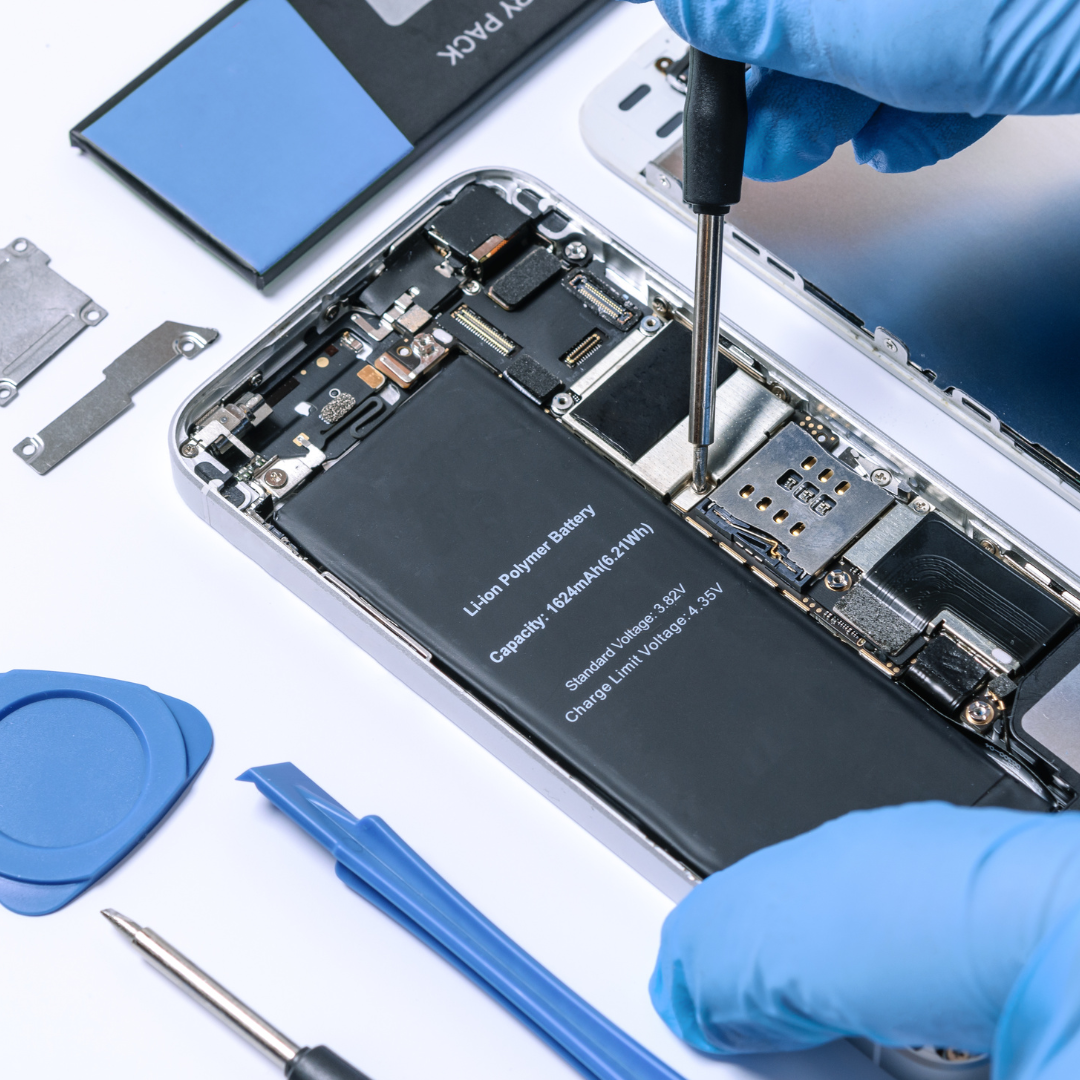
You may not want to buy an entirely new phone because of your bad battery life, you could instead opt to have it replaced by going to a phone shop and buying one.

Some will do it in front of you, whilst others may ask you to come back so they can order the correct parts.

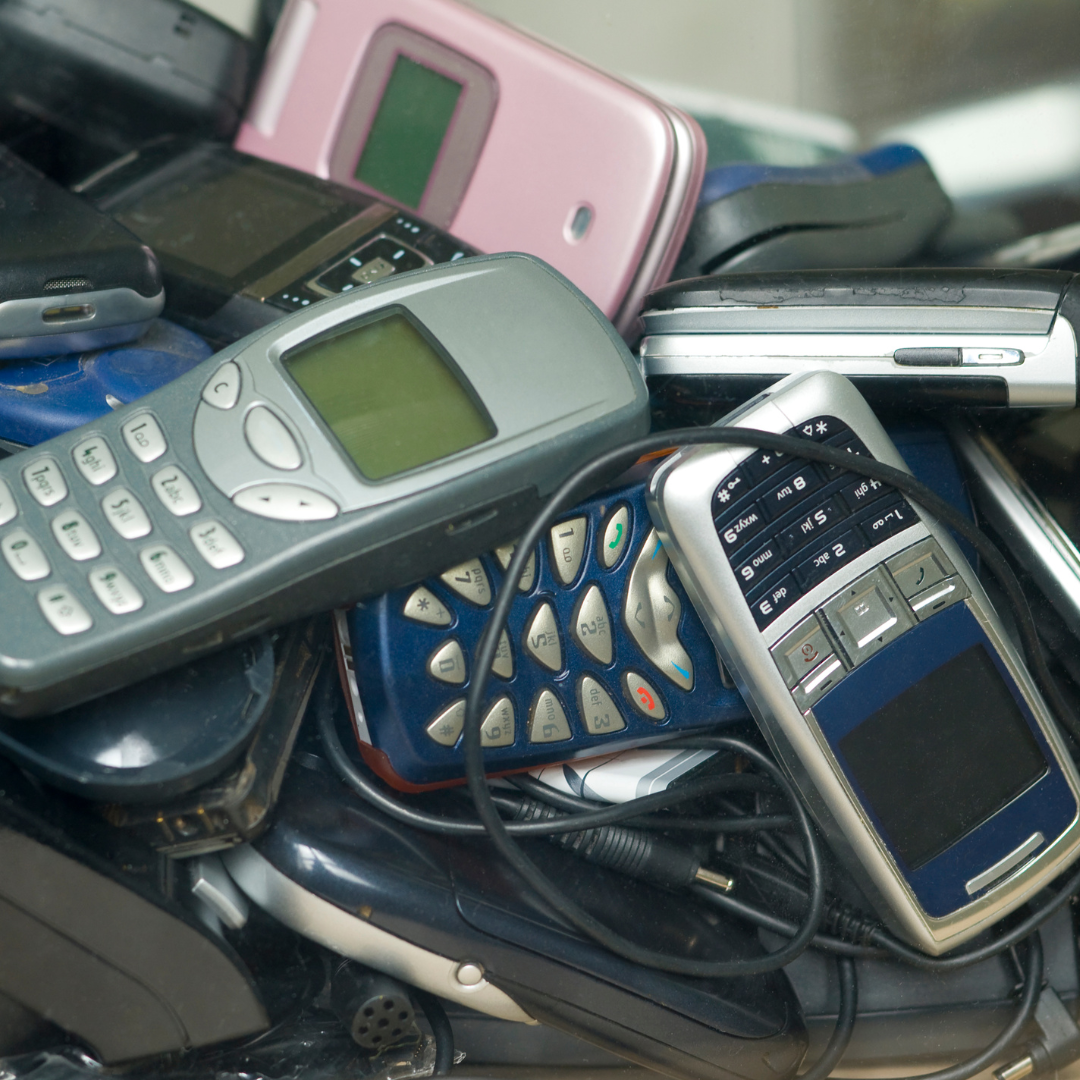
It used to be easy to change a phone battery in the early days of phones because the backs used to pop off quickly and the replacements could be bought online or in-store, however, as devices have advanced with new hardware, and battery needs have changed, they can’t be replaced unless taken to a shop to have it done for you.

You’ve Had Your Phone For Too Long

This coincides with all the other reasons above why your phone may be running slowly. You simply have had your phone for way too long.

That is why your apps are crashing, you constantly need to update, and your battery life is decreasing.

You could try sorting it all out one after the other, or it may be time for you to get a new phone.

Whilst this may not be an option for everyone as phones are quite expensive, there are cheap options on the market, and with monthly plans, it can spread the cost.

Conclusion

Your phone is something you can’t live without, so it going slowly will make you feel very frustrated. Hopefully, these tips have been able to help you out so you can keep it working at its optimal level.

If you can’t speed it back up again, then it may be the right time to get yourself a new one.

9 Best Mobile Phones for Blogging

Are you one of the aspiring bloggers nowadays? Many content creators find success on YouTube and Instagram, among other platforms. Hundreds of thousands of people create and watch vlogs like these every day. While anyone can vlog, it does take some know-how with regard to equipment. If you’re looking for the best mobile phone for vlogging purposes, we can help you with that. Read on to learn more about the best mobile phones for vlogging

HTC 10

The HTC 10 is the best mobile phone for blogging. It has a large screen, making it easy to type and edit blog posts. The camera is great for taking pictures and videos to accompany your posts. And the battery life is long enough to last all day, even when you’re using power-hungry apps like WordPress.

iPhone XS

There’s no denying that the iPhone XS is one of the best mobile phones on the market. The iPhone XS has an excellent camera. This is important for bloggers who want to take high-quality photos to accompany their posts. It is extremely fast and responsive, which is crucial for bloggers who want to be able to publish their content quickly and easily. Finally, the iPhone XS has great battery life, meaning that bloggers can rely on it to stay charged up all day long.

Google Pixel 3

Google’s Pixel 3 has an excellent camera that takes great photos and videos, and it has a built-in blog app that makes it easy to post content to your blog. The Pixel 3 also has a large, high-resolution display that is perfect for reading and writing blog posts. And because it is a Google device, it is very easy to use and has a lot of features that are perfect for bloggers, such as Google Hangouts and Google Translate.

OnePlus 7 Pro

The OnePlus 7 Pro is one of the best mobile phones for blogging as it offers a great camera, a large screen, and a fast processor. The camera is brilliant for taking high-quality photos and videos, while the large screen is perfect for editing and writing blog posts. The fast processor ensures that your blog posts are published quickly and easily, making it a great choice for professional bloggers.

iPhone 11 Pro Max

This phone has an amazing camera that will let you take stunning photos and videos for your blog. It also has a large screen that will make writing and editing your posts a breeze. And if you’re always on the go, the long battery life will keep you going all day long. Plus, the OLED display is simply gorgeous and makes reading and writing on your blog so much more enjoyable.

Huawei Mate 20 Pro

The Huawei Mate 20 Pro has a large, 6.39-inch display, which is great for viewing content and editing blog posts on the go. It’s also packed with powerful specs, including a Kirin 980 processor, 6GB of RAM, and a massive 4,200mAh battery. Moreover, its triple rear camera system (40MP + 20MP + 8MP) can capture gorgeous photos and videos for your blog. If you’re looking for a top-of-the-line phone for blogging, the Huawei Mate 20 Pro is a great option.

Samsung Galaxy S9+

It has a large and clear display that is perfect for writing and editing blog posts. The camera is also great for taking photos and videos to accompany your blog posts. The battery life is long enough to last all day while you are writing, editing, and publishing your blog posts.

Samsung Galaxy S10

The phone comes with a large 6.1-inch display, which is perfect for viewing blog content, and the built-in Qualcomm Snapdragon 855 processor provides plenty of power for loading blog content quickly. It also comes with a highly capable rear-facing camera, which is perfect for taking high-quality photos to accompany your blog posts. If you’re looking for a mobile phone that can do it all, the Galaxy S10 is the one for you.

Samsung Galaxy S22

It has a large, clear display and a great camera for taking pictures and videos. The phone is also fast and responsive, making it easy to upload content to your blog. The battery life is good, so you can blog all day without having to worry about running out of power. In addition, with Samsung’s Knox security system, you can rest assured that your vlog and data are safe and secure.

Buy These Best Mobile Phones Now

If you’re a blogger, you know how important it is to update your vlog from wherever you are. There are phones out there that can handle your blogging activity. You can try using the HTC 10, iPhone XS, Google Pixel 3, OnePlus 7 Pro, and iPhone 11 Pro Max. Also, you can add to your list the Huawei Mate 20 Pro, Samsung Galaxy S9+, Samsung Galaxy S10, and Samsung Galaxy S22. With the help of these phones, take your blogs to a different level.

Did you find this article helpful? If so, make sure you check out our other tech posts!

Knowing How To Make the Most of TikTok as a Commercial Enterprise

TikTok is a social media app that has taken the world by storm. It is an excellent platform for businesses to promote their products, services, or both. To make the most of TikTok, businesses need to understand how the app works and what it can offer them. In this article, we will discuss some tips on how businesses can make the most of TikTok. We will also provide information on where businesses can buy likes that count. The key to success can be knowing where to find the best site to buy TikTok likes.

Understanding How the TikTok App Works

When it comes to making the most of TikTok, businesses need to understand how the app functions and what it can offer them. TikTok is a great platform for businesses to promote what they do and sell. It offers many unique features that businesses can use to their advantage. For instance, companies or small businesses can use TikTok’s duet feature to create marketing videos with other users. TikTok also has a hashtag challenge feature that businesses can consider to promote their products and services.

Option to Create Short Video Content

TikTok is a social media app that allows users to create and share short videos with others. The app is popular with people of all ages and has been downloaded over 1 billion times. It can be the short videos that have the most impact in the digital world. Not many of us have the time to watch a lengthy video to the end and will want the message delivered to us as soon as possible. This is the key to marketing success using video content. When creating brand videos for TikTok, you can use the videography features provided on the app to visually demonstrate your products and services. Alternatively, you can explore Video Production Services online or in your neighborhood to produce advertising videos for TikTok and other social media platforms. Social media, including Instagram reels and TikTok, are brilliant platforms to promote your business using short videos as well as audio-visual content that can keep your audience entertained.

TikTok is a Great Platform for Marketing and Advertising

TikTok is great for promoting brands and products. Building a following is just like building a brand, so the two very much sit side by side. To make the most of TikTok, businesses need to understand the principle of gaining a following for their profile and likes for their product. In addition, businesses can also collaborate with a reputed TikTok Ad Agency which can take care of all their promotional endeavors relating to the viral social media app.

Social media and the TikTok platform offer a unique way to market business activities. The TikTok app, in particular, allows businesses to create short videos that can be shared with many others. Sharing is important when it comes to spreading a message. Others who share are doing your promotion for you as a business. This is saving money and getting your company noticed. The more exposure you have as a business, the more likely you are to make a sale. Word spreads quickly on social media platforms.

When it comes to short videos, engaging and visually appealing content is more likely to be shared and go viral. Investing in professionals by searching “Miami Video Production” or for a location nearby, businesses can ensure that the videos are not only creative and entertaining but also aligns with their brand identity and marketing goals. Word spreads quickly on social media and high-quality video content can be a powerful tool to stand out in the crowded TikTok landscape.

Businesses Can Buy Likes that Count

TikTok is a social media app that has taken the world by storm because it has expanded into commercial territories. Apart from the other features mentioned that TikTok offers businesses, there is also the possibility to buy likes. TikTok likes can help businesses to increase their visibility and reach on the app. TikTok likes can also help businesses to appear more popular and credible. There are several different ways for businesses to buy likes. For example, businesses can buy TikTok likes from third-party providers.

TikTok is a powerful social media tool that businesses can use to reach new customers and grow their brands. By understanding how TikTok works and using the right tools and strategies, businesses can make the most of this platform and see great results. For expert guidance on creating effective social media strategies and maximizing your online presence, businesses can explore resources at BizLadder. Buying likes on TikTok can help your videos get more exposure and increase your chances of getting more followers and sales. With the right approach, TikTok can be a valuable part of any business marketing strategy and so one well worth pursuing.

How to Connect Your iPhone to Your TV

If you’re one of the millions of iPhone users that have a television, you’ll know how useful it can be to stream content from your phone onto the TV. But what if you have an iPhone that doesn’t have a display? Well, this is where a digital media streamer, such as the new Apple TV, comes in handy. There are a number of different ways to connect your iPhone to the TV, depending on the model and version of the TV you have. We’ll look at the easiest ways of all to get your iPhone onto the TV.

How do you connect your iPhone to your TV?

Here are some of the most popular ways we can connect our iPhones to our TVs:

  • Use HDMI to connect iPhone to TV.

Whether you’re a young adult or a grown-up who still likes to stay on top of the latest tech news and trends, there are a number of different things you can do with your iPhone to make it compatible with your TV-and to make it easier to stay connected to your favorite entertainment. One of the primary ways you can use your iPhone to connect your TV is by connecting it using an HDMI cable or a VGA cable (more information on this can be found on https://devinschumacher.com/shop/vga-cables/ and similar sites), depending on what is portable for your device.

An increasingly popular method of connecting an iPhone to a television has been the use of an HDMI and VGA cable. As users of Apple’s flagship iPhone XS and XS Max smartphones, it is easy to forget that a standard HDMI cable is also an input, allowing you to play many media files on your television such as videos, photos, and music. HDMI is an interconnection that transfers digital video and audio signals between two devices and is a common way to connect to your television.

  • Connect your iPhone to your Smart TV

The iPhone is one of the most popular smartphones ever. It’s a smartphone that looks like a pager. The iPhone is more than a simple phone: it has a bunch of applications, operating systems, and devices that make it more than a simple smartphone.

To connect your iPhone to your TV means you want to make use of the Smart TV and the Smart TV Apps to get the best of both worlds. Your iPhone allows you to do a lot of things in the Smart TV using the Smart TV Apps. If you want to get the TV and the Apps, you need to make sure that your iPhone supports the different Smart TV Apps. If your iPhone is not working with the Smart TV Apps, then you might want to try other options in this list.

  • Use Apple TV to stream it to your TV

If you want to watch hulu horror anime or Netflix comedy movies on your TV, you’ll need a computer, a router, and a smart TV. But if you were to go the Apple route and use the Apple TV to stream content, there’s the issue of connecting it to your TV.

If you have ever plugged an iOS device into an Apple TV, you know how fast the two devices can sync. But sometimes, as with the recent release of iOS 11, the iPhone can be left behind. Fortunately, there is a way to ensure that your iPhone is always on the same Wi-Fi network as your Apple TV.

  • Use Plug and Play cable in connecting iPhone to your TV

Say you want to watch a movie on your TV from your iPhone. You could connect to your TV using your phone’s cable, but you don’t have to. Why? Because there are better ways to do it. And one of those is using a USB-C-to-HDMI adapter. Plug it into your iPhone, plug the other end of the adapter into the TV, and you’re good to go. You may have to disconnect and reconnect a few times for the connection to be established correctly; if you are still unable to connect to a TV, you might have a problem with the cable or the port of your iPhone. When it comes to the latter, you might need to take it to a repair shop that is Apple certified and can Fix iPhone and other Apple products.

If you own an iPhone or other Apple device and are looking to connect it to your TV- which is an increasingly common use of phones these days – you will quickly realize that there are a variety of different options. Depending on the model, from simple to complex, there may be a plethora of different cables available as well.

There are so many ways to connect your iPhone to your TV that it can be hard to know where to start. No worries, just take note of the above options, and you’ll definitely find the one suitable for your TV needs.