Best Productivity Apps for Professionals to Boost Efficiency and Workflow
Professionals often face a constant battle to manage time, tasks, and communication efficiently. Choosing the right productivity apps can significantly reduce stress and boost focus during busy workdays. The best productivity apps for professionals streamline task management, improve collaboration, and help maintain clear priorities.
These tools vary from advanced project management platforms to simple note-taking apps. Each offers unique features designed to fit different workflows and industries. Understanding which apps match your specific needs is key to enhancing productivity without adding complexity.
Top Productivity Apps for Task Management
Effective task management tools balance simplicity with powerful features. They help professionals organise daily duties, track progress, and sync tasks across devices. Choosing the right app depends on individual workflow needs and collaboration requirements.
Best To-Do List Apps
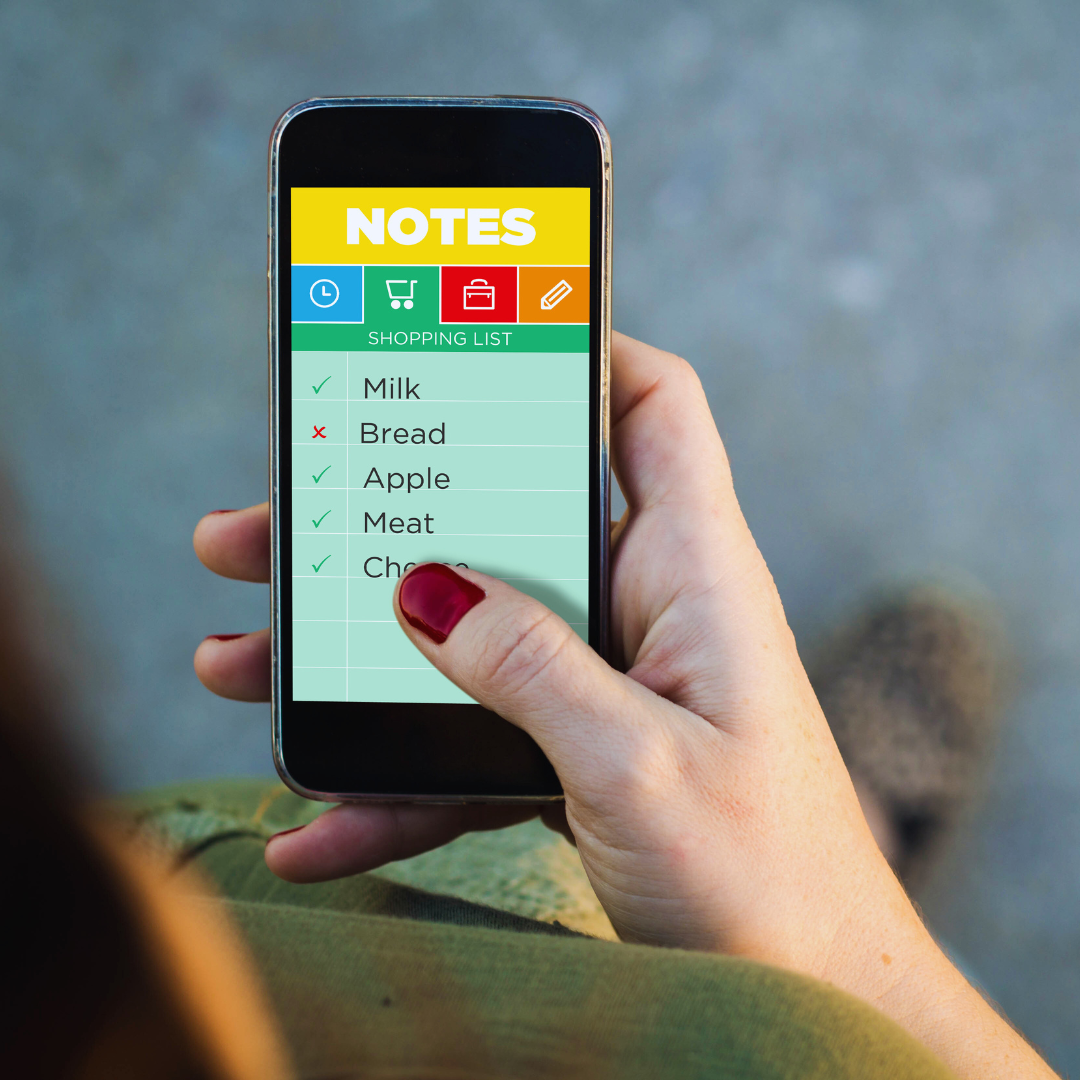
To-do list apps like Todoist and Microsoft To Do excel in managing personal and professional tasks. Todoist offers robust tagging, priority levels, and recurring tasks, with seamless integration into email and calendar apps. Microsoft To Do focuses on simplicity, featuring task grouping and smart suggestions based on deadlines.
Both apps support offline access and cross-device syncing, which is crucial for staying productive on the go. They also enable task sharing, suitable for light collaboration without the complexity of full project management tools.
Project Tracking Tools
Project tracking apps such as Asana and Trello provide visual task management through boards, lists, and timelines. Asana supports task dependencies, milestones, and workload management, making it ideal for detailed project oversight. Trello’s card-based interface is flexible, letting teams customise workflows with checklists, labels, and attachments.
These platforms improve transparency and communication by allowing comments, file sharing, and deadline notifications. Integration with communication tools like Slack or email enhances project coordination across teams.
Multi-Platform Task Organisers
Apps like Notion and ClickUp combine task management with note-taking and document collaboration. Notion offers customisable databases and templates for tasks, calendars, and goals, adaptable to various workflows. ClickUp provides goal tracking, time estimates, and automation alongside task lists and dashboards.
Both apps support desktop, mobile, and web versions, syncing tasks and notes instantly. Their versatility suits professionals needing a single app to manage both tasks and project-related content in one place.
Collaboration and Communication Tools
Effective workplace collaboration relies on tools that streamline communication, support dynamic workflows, and enhance visibility across teams. The right apps offer integration with other software, ease of use, and features tailored to professional needs.
Team Messaging Platforms
Team messaging apps like Slack and Microsoft Teams centralise communication with channels, threads, and direct messages. They reduce email clutter and allow quick sharing of files, links, and updates in real time.
These platforms often include robust search capabilities and integrations with project management and calendar apps, helping teams stay organised. Notifications can be customised to avoid distractions while ensuring critical messages get attention.
Security features such as encryption and compliance with industry standards make these tools suitable for sensitive professional environments. User-friendly interfaces support adoption across different skill levels, making messaging platforms essential for daily collaboration.
Video Conferencing Solutions
Zoom, Google Meet, and Microsoft Teams provide reliable video calls with features such as screen sharing, breakout rooms, and recording. These tools enable face-to-face interaction regardless of location, which is crucial for remote and hybrid teams.
High-quality audio and video, along with easy joining options, improve meeting engagement. Integration with calendars and meeting invites automates scheduling, reducing administrative overhead.
Advanced functionalities include live captions, noise suppression, and meeting analytics. These features enhance accessibility and help organisations monitor productivity and participation metrics.
Real-Time Document Editors
Google Docs, Microsoft Office 365, and Dropbox Paper enable multiple users to edit documents, spreadsheets, or presentations simultaneously. Changes appear instantly, eliminating version control issues.
Collaboration tools include comments, suggestions, and task assignments directly within files. This facilitates clear feedback loops without switching between apps.
These platforms support offline editing, automatic saving, and cloud storage, ensuring data integrity and accessibility. Permissions and sharing controls allow fine-tuning access to sensitive documents, balancing collaboration with security.
Apps for Time Management and Focus
Managing time effectively and maintaining focus are critical for productivity. Tools designed for tracking hours, enhancing concentration, and organising schedules help professionals optimise their workdays.
Time Tracking Applications
Time tracking apps provide detailed insights into how work hours are spent, allowing users to identify productivity patterns. Popular options include Toggl and Harvest, which offer easy-to-use interfaces and reporting features.
These apps support automatic tracking, manual entries, and integration with project management systems. They help professionals allocate time accurately to tasks, monitor billable hours, and generate invoices.
Additionally, time tracking data can guide adjustments to improve workflow efficiency. Many apps offer mobile versions and browser extensions, increasing flexibility throughout the day.
Focus Boosters and Pomodoro Timers
Focus boosters use structured work intervals to enhance concentration and prevent burnout. Pomodoro timers break work into 25-minute sessions followed by short breaks, a method supported by apps like Focus Booster and TomatoTimer.
These tools reduce distractions by encouraging disciplined work bursts and regular rest periods. Users can customise session lengths and track daily completed cycles, fostering steady progress.
Many apps include analytics that highlight productivity trends, helping users identify peak focus times. Notifications and locking modes limit interruptions during sessions.
Calendar Management Tools
Calendar apps aid time management by scheduling meetings, deadlines, and reminders in one place. Google Calendar and Microsoft Outlook are widely used due to their cross-platform syncing and collaboration features.
Users can create events with detailed descriptions, invite participants, and set recurring reminders. Integration with email and task management tools streamlines workflow coordination.
Advanced features like time zone adjustments, availability sharing, and colour-coding improve organisation. Real-time updates and mobile access ensure professionals stay informed throughout the day.
Document and File Organisation Solutions
Efficient document and file management streamlines workflows and prevents data loss. Choosing the right tools can improve accessibility, security, and collaboration in professional settings.
Cloud Storage Services
Cloud storage services offer remote file access, automatic backups, and synchronisation across devices. Popular platforms like Google Drive, Dropbox, and OneDrive provide scalable storage with real-time editing capabilities.
These services support file versioning and permission controls, allowing multiple users to access and modify documents while maintaining security. Integration with office suites enhances productivity by minimising the need to switch apps.
Costs vary by storage needs, with free tiers suited for basic use while paid options cater to professionals requiring larger capacity and advanced features. Selecting a provider should consider data encryption standards and compliance with industry regulations.
File Sharing Apps
File-sharing apps enable secure and immediate distribution of large files within and outside organisations. Tools such as WeTransfer, ShareFile, and Slack simplify transferring data without overloading email servers.
These apps often include link expiration, password protection, and download tracking to enhance security and control. Integration with cloud storage services further streamlines collaboration by combining sharing with centralised file management.
Speed and ease of use are crucial. Many support multiple platforms and file types, allowing users to share documents, images, and videos quickly. Compatibility with mobile devices supports productivity on the go.
Document Scanning and PDF Tools
Document scanning and PDF tools convert physical documents into editable, searchable digital files. Apps like Adobe Scan, CamScanner, and ABBYY FineReader offer optical character recognition (OCR) to extract and edit text.
These tools improve document management by reducing paper clutter and enabling electronic signatures, annotations, and easy sharing. PDFs remain a standard professional format due to consistent display and security features.
Batch scanning, file compression, and format conversion are common features enhancing efficiency. Many solutions integrate with cloud storage to directly save and organise scanned documents.
Note-Taking Applications for Professionals
Efficient note-taking boosts organisation and memory retention in professional settings. The tools discussed here emphasise versatile input methods and easy access to information. Both handwritten and voice note options suit distinct styles of capturing ideas quickly and clearly.
Handwritten Note Apps
Handwritten note apps replicate the natural feeling of writing on paper, ideal for brainstorming and diagrams. Apps like GoodNotes and Notability support Apple Pencil on iPads, allowing users to combine handwriting, typed text, and sketches.
These apps also offer searchable handwriting, which makes finding notes easier despite the organic writing style. They support PDF annotation and cloud syncing, ensuring notes are accessible across devices. Professionals benefit from organisation tools like folders and tags that keep notes classified.
The tactile experience appeals to those who prefer a slower, more thoughtful note-taking process, which can improve focus during meetings. These apps are particularly useful in design, education, and planning roles.
Voice Note Recorders
Voice note recorders convert spoken words into quick, hands-free records of meetings or thoughts. Apps like Otter.ai utilise AI transcription, providing searchable, editable text alongside audio playback.
These tools often include speaker identification and keyword highlights, making it easy to review key points without listening to entire recordings. They sync with calendars and support team sharing to enhance collaboration on projects.
Voice recording apps are suited for professionals needing to capture detailed information rapidly, such as journalists, consultants, or executives, during calls and interviews. They reduce the need for manual transcription and allow multitasking.
Automation and Workflow Integration Apps
Automation tools help reduce manual effort by connecting multiple systems and streamlining repetitive tasks. Integration apps enable smoother data flow across various business platforms, improving overall efficiency.
Task Automation Platforms
Task automation platforms like Zapier, Integromat (now Make), and Microsoft Power Automate specialise in linking different apps to automate workflows. These tools allow professionals to set triggers and actions, such as automatically creating calendar events from emails or updating CRM data when form submissions occur.
They support hundreds of popular apps, including Google Workspace, Slack, and Trello, enabling users to build custom workflows without coding. The drag-and-drop interfaces simplify automation setup while offering advanced options for conditional logic and multi-step processes.
Automation platforms save time by eliminating redundant data entry and reducing human error in routine tasks, making them essential for professionals managing multiple systems.
Integration with Business Software
Integration apps connect core business software like CRMs, project management, accounting, and communication tools. Platforms such as Workato and Tray.io focus on deeper, enterprise-grade integrations that handle complex data synchronisation and real-time updates.
These integrations ensure that sales data, customer information, or project statuses remain consistent across all platforms. Automated sync helps departments work from the same datasets, enhancing collaboration and decision-making accuracy.
Business software integrations also support reporting dashboards that pull data from different applications, offering a unified view of company operations without manual data collection. This makes it easier for professionals to monitor performance and react faster to changes.
Personal Productivity Enhancers
Improving personal productivity often involves tools that help form consistent habits and organise thoughts visually. Effective apps in these areas support tracking progress and clarifying ideas clearly.
Habit Tracking Apps
Habit tracking apps focus on creating and maintaining daily routines. They work by setting specific goals, sending reminders, and visualising progress over time to encourage consistency. Popular options like Habitica add gamification, turning habit-building into a task-based game, which can increase motivation.
Other apps, such as Loop Habit Tracker, provide clean, simple interfaces with detailed charts and streak counters. These features help users identify patterns and stay accountable. Most habit trackers allow customisation of habits, notifications, and offer data export for long-term observation.
Habit tracking improves self-discipline through measurable achievements. The ability to review daily or weekly stats helps adjust routines to maximise productivity.
Mind Mapping Tools
Mind mapping tools enable professionals to organise ideas, plan projects, and solve problems visually. They create interactive, diagram-based representations of concepts, showing relationships clearly. Tools like MindMeister and XMind allow users to build complex maps with colours, icons, and linking paths.
These apps facilitate brainstorming by enabling collaboration and easy editing. Integration with cloud services ensures access across devices, promoting flexibility in work environments.
Mind maps improve focus by breaking down large tasks into manageable parts. They also enhance memory retention by providing a non-linear structure for information. Such tools are essential for strategic planning and creative workflows.
Choosing the Right Productivity Apps
Selecting the best productivity apps involves evaluating how well they align with your professional needs and work habits. It also requires planning for smooth integration and consistent use to maximise its benefits.
Factors to Consider for Professionals
Start by identifying core features that match your daily tasks. Look for apps offering task management, calendar syncing, and collaboration tools if you frequently coordinate with teams. Prioritise apps with strong security measures, especially if handling sensitive data.
Compatibility with your devices and existing software is critical. An app working seamlessly across desktop and mobile platforms prevents workflow disruptions. Also, consider the learning curve—the app should be intuitive enough to avoid wasting time on training.
Cost is another important factor. Many apps offer tiered pricing; choose one that delivers value without unnecessary extras. Finally, check user reviews and support resources to ensure reliability and quick problem resolution.
Tips for Effective App Adoption
Start small by introducing one app at a time to avoid overwhelm. Set clear goals for what you want to achieve, such as improving time tracking or streamlining communication. Establish routines around app use; for example, schedule a daily review of tasks within the tool.
Encourage team members to adopt the same applications if collaboration is involved. Provide short training sessions or share helpful tutorials to boost proficiency. Regularly assess the app’s impact on your workflow and adjust settings or workflows as needed.
Keep backup plans in case of technical issues. Maintaining flexibility with app use can prevent downtime and frustration. Consistency combined with strategic use turns a simple app into a productivity asset.